Threat actors often impersonate IT support to deceive their targets into disclosing account credentials and installing malware. They usually lure with urgent emails related to account issues, such as expired passwords, full mailboxes, and security alerts. Threat actors send emails containing fraudulent links, malicious attachments, or fake phone numbers to initiate data theft or gain remote access to compromise systems and networks. Key red flags include urgent threats, generic greetings, mismatched senders, and requests for sensitive information
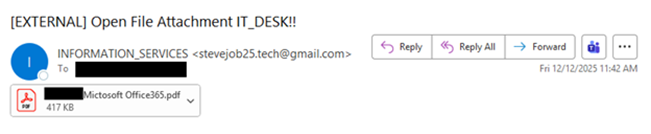
The NJCCIC observed an IT help desk scam targeting New Jersey public sector organizations, including New Jersey State employees and educational institutions. The phishing email’s display name shows “INFORMATION_SERVICES,” implying an internal communication. However, the email is marked with an external tag and comes from a generic Gmail email address that references Steve Jobs and tech. The subject line invites the target to open a file attachment supposedly from the IT (help) desk, and the email contains a misspelled “[impersonated organization name] Mictosoft Office365.pdf” attachment.
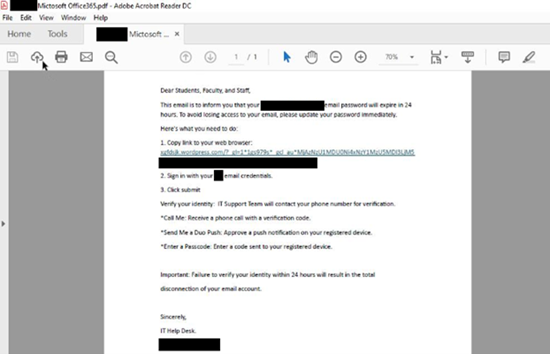
If the attachment is opened, the content displays urgent messaging from the impersonated organization’s IT Help Desk, claiming that the target’s password will expire in 24 hours, and they will lose access to their email if they do not follow the instructions. The threat actors instruct the target to update their password immediately by copying the link to their web browser, signing in, and verifying their identity.
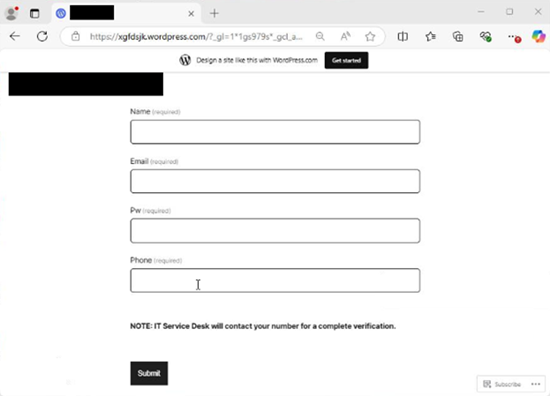
If the target copies the link to their browser, a WordPress phishing page is displayed, prompting them to enter their name, email address, password, and phone number. If submitted, the threat actors capture and steal the account credentials in the background. To bypass multi-factor authentication (MFA) and compromise the account, the threat actors initiate the “verification process” by calling the target and claiming they need to verify their identity. In the background, the threat actors submit the stolen credentials on the official organization’s website or application, which then prompts the MFA code to be sent via phone call or a message to the target’s registered device, or an MFA push notification to be sent for approval. Once the target reveals the code or approves the notification, the threat actors can access the account. This “verification process” is not initiated by the target and is considered a red flag. Legitimate IT help desks will never initiate contact with users via email or over the phone to request or demand sensitive information, passwords, MFA codes, or MFA push notification approvals.
Additionally, impersonation and branding are utilized throughout this campaign, but may not be consistent, possibly due to an error by the threat actors. For some emails, the spoofed organization is not associated with the target’s own organization, logos, IT help desk, or domain name. For example, threat actors spoofed one organization in the attachment, but a different organization appeared on the phishing page.
Recommendations
Exercise caution with unsolicited communications from known senders.Confirm requests from senders by verifying their contact information obtained from trusted and official sources before taking action, such as opening attachments or clicking on links.Hover over links in emails or attachments to view the actual destination URL before clicking.Type official website URLs into browsers manually and only submit sensitive information on official websites.If you receive password resets, MFA codes, or MFA push notifications without initiating the request, ignore the code or deny the request and change the account password immediately via the official organization’s website or application to prevent further login attempts and MFA push notification requests.For organizations, implement monitoring and warning mechanisms to detect suspicious MFA prompt activity. Limit the number of MFA authentication requests per user within a specified time period, if this option is available. If thresholds are exceeded, temporarily lock the account and alert the domain administrator.Keep systems and browsers up to date.Report malicious cyber activity to the NJCCIC and the FBI’s IC3.